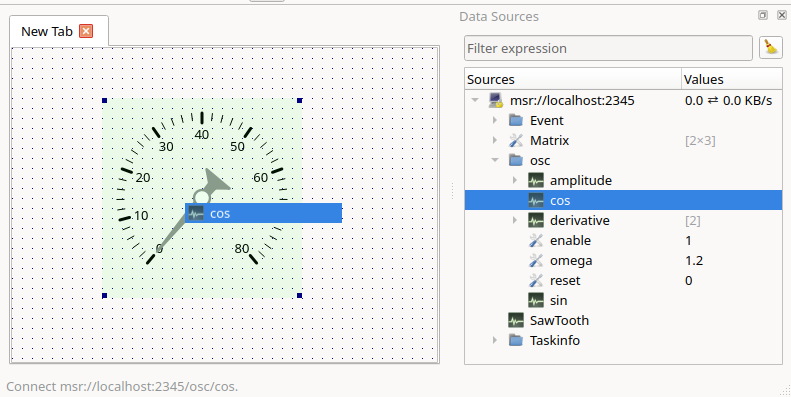
To connect a process variable to a widget, drag it from the data source tree onto the widget in edit mode. A tooltip indicates, whether the variables will be connected or replace the existing connections.
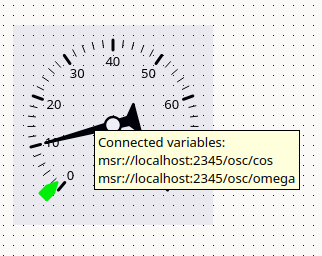
When hovering over a widget, a tooltip lists all connected variables.
Select Process data connections... from the context menu of a widget to fine-tune its connections.
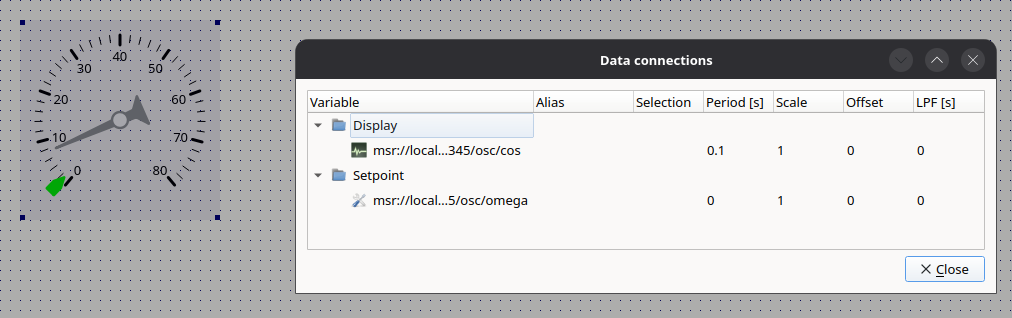
| Column | Description |
|---|---|
| Alias | Name displayed instead of the variable path (e.g. in legends) |
| Selection | Element of a vector or matrix variable |
| Period [s] | Sample time; 0 means event-based transmission |
| Scale | Factor applied to the value |
| Offset | Offset added to the scaled value |
| LPF [s] | Time constant of a first-order low-pass filter |
| Color | Color of the variable in graphs |
Important
Within one connection to a process, a signal can be transmitted
either event-based (period 0) or periodically
(period > 0). Therefore use either event-based or periodic
transmission consistently for a signal.
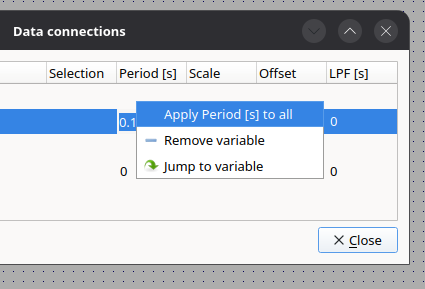
Right-click a column to apply a value to all connections or to the selected connections and their children.
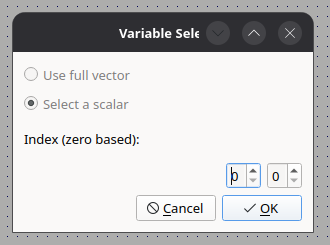
If a vector or matrix variable is connected to a widget that expects a scalar, the element can be chosen in the Variable Selector dialog.
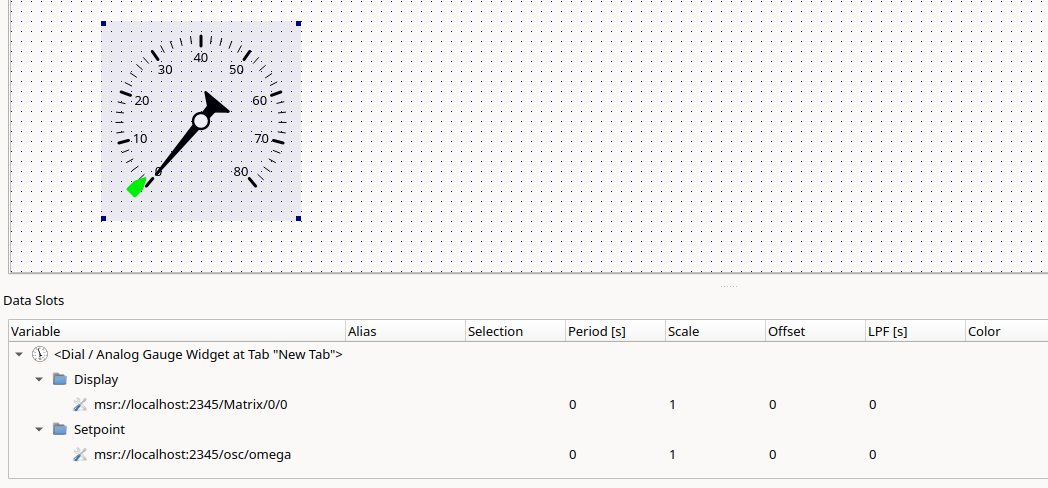
The Data Slots dock shows the connections of the selected widgets. Use Jump to variable to locate a connected variable in the data source tree.