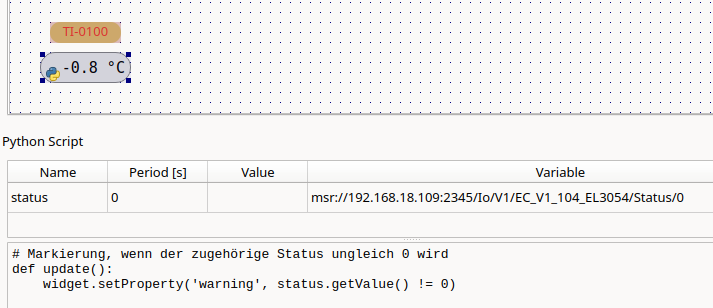
Each widget can have a Python script that is executed whenever one of its script variables changes. This allows, for example, to enable or disable widgets or to change their appearance depending on process values.
Select a widget in edit mode and open the Python Script dock (or select Edit script... from the context menu of the widget).
The table at the top contains the script variables. Drag process variables from the data source tree into the table. The Name column defines the name under which the variable is available in the script; Period [s] defines the sample time.
Note
Within one connection to a process, a signal can be transmitted
either event-based (period 0) or periodically
(period > 0) (see Browsing a data
source).
The script must define a function update(), which is
called when a variable changes. Within the script, widget
refers to the widget the script belongs to.
# Enable widget based on the value of the 'enable' variable
def update():
    widget.setEnabled(enable.getValue())
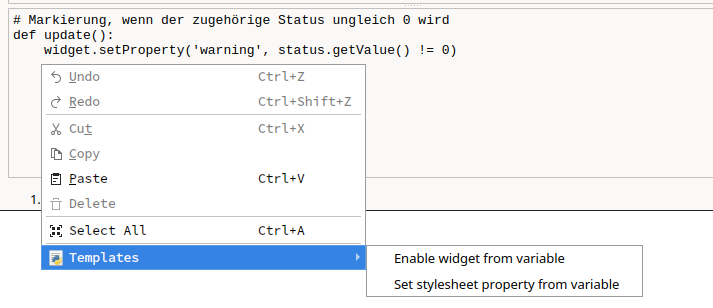
Right-click into the editor to insert templates.
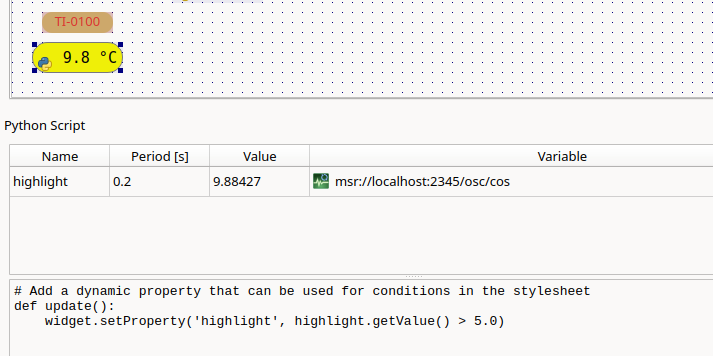
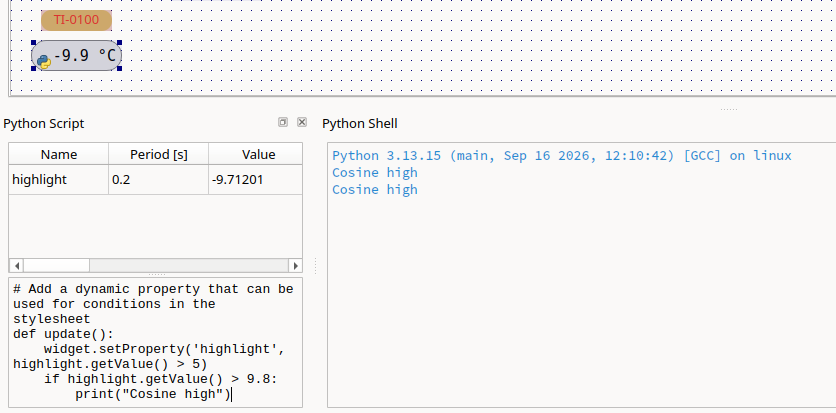
A script can set dynamic properties, which are evaluated by the stylesheet:
def update():
widget.setProperty('highlight', highlight.getValue())QWidget[highlight=true] {
background-color: yellow;
}
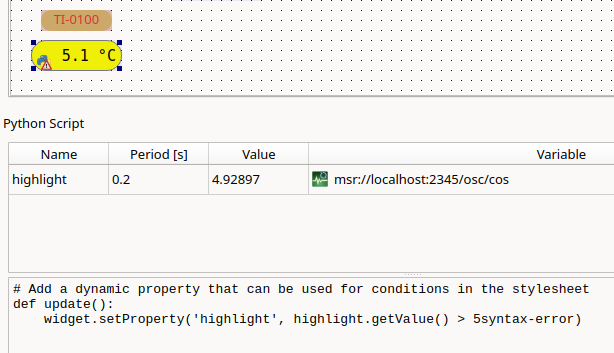
Syntax errors are displayed with the line number. If no callable
update() is found, this is indicated as well.
The Python Shell dock provides an interactive Python
interpreter, which shares the environment with the scripts. Outputs of
print() in scripts appear here.
See the Python API reference for all available objects and functions.